To ensure a smooth experience for both employees and admins, users can request flight tickets from the 'Requests' tab as a separate request.
To request a flight ticket:
1. Go to 'Requests' and click on 'New Request'
2. Select the employee for whom you are applying and choose the request type 'Flight Ticket Request'
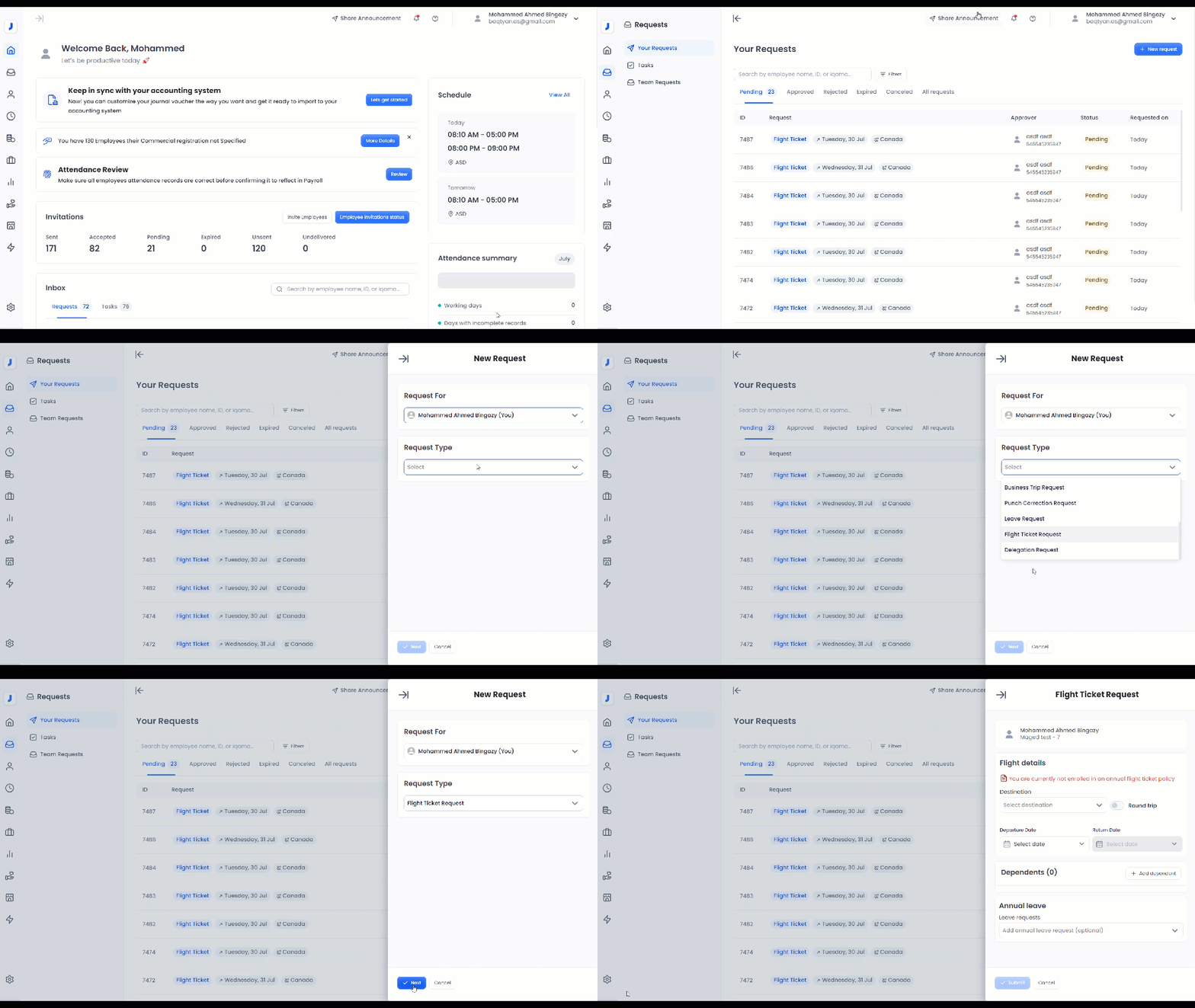
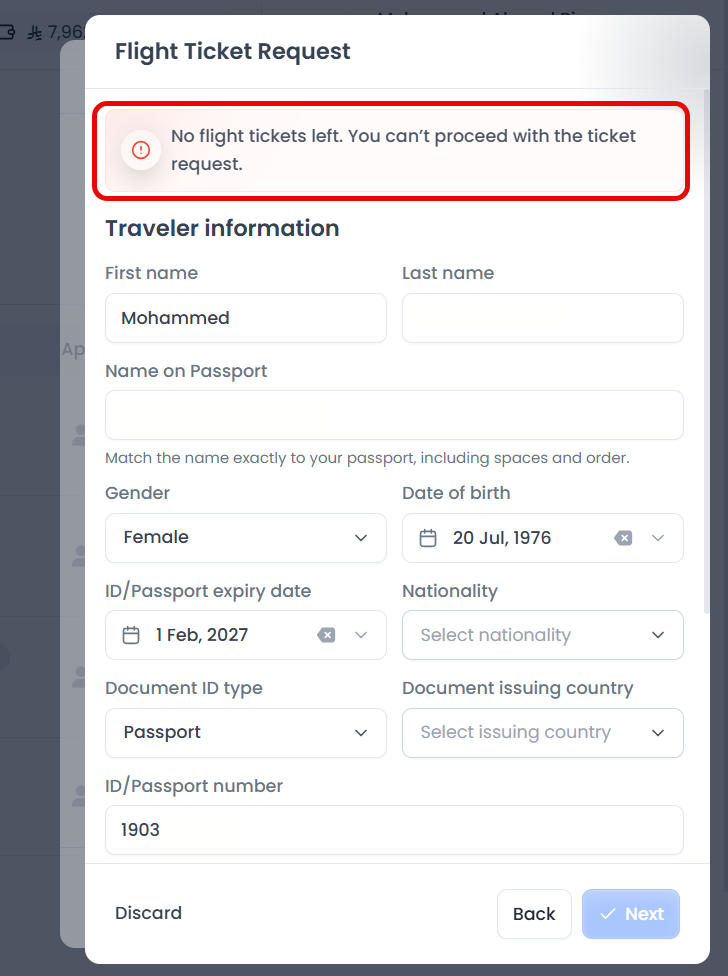
3. When selecting "Flight Ticket Request", the available flight ticket balance details for the employee will appear, showing the original, remaining, and pending balances according to the policy assigned to the employee.
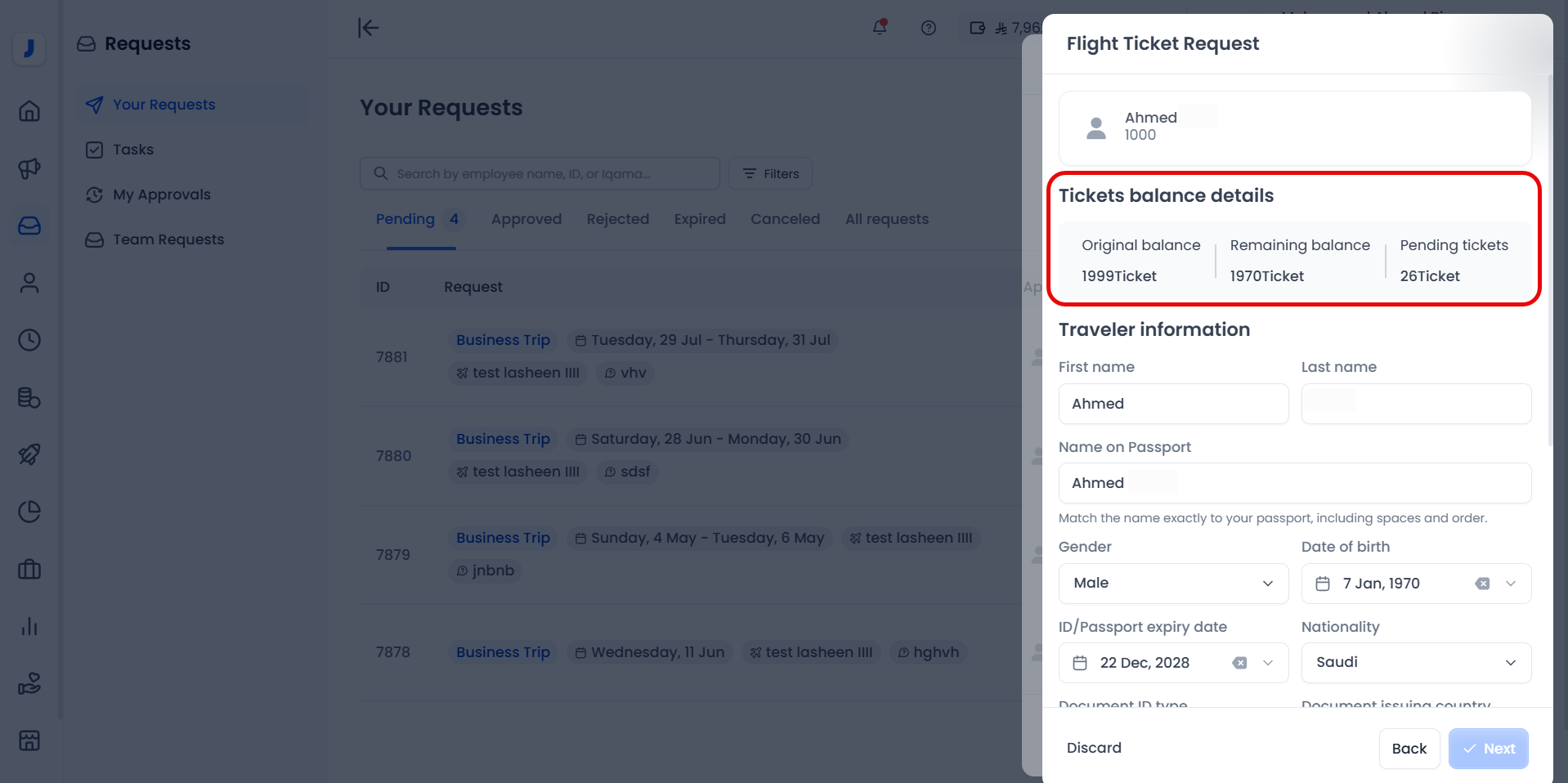
Note:
- If the employee's flight ticket balance is depleted, the system will display an alert indicating that the balance has run out, and the user will not be allowed to submit the request.
- if the employee is not enrolled in one of the annual flight ticket policies, a message will appear to notify the user. However, this will not prevent the user from completing the request.
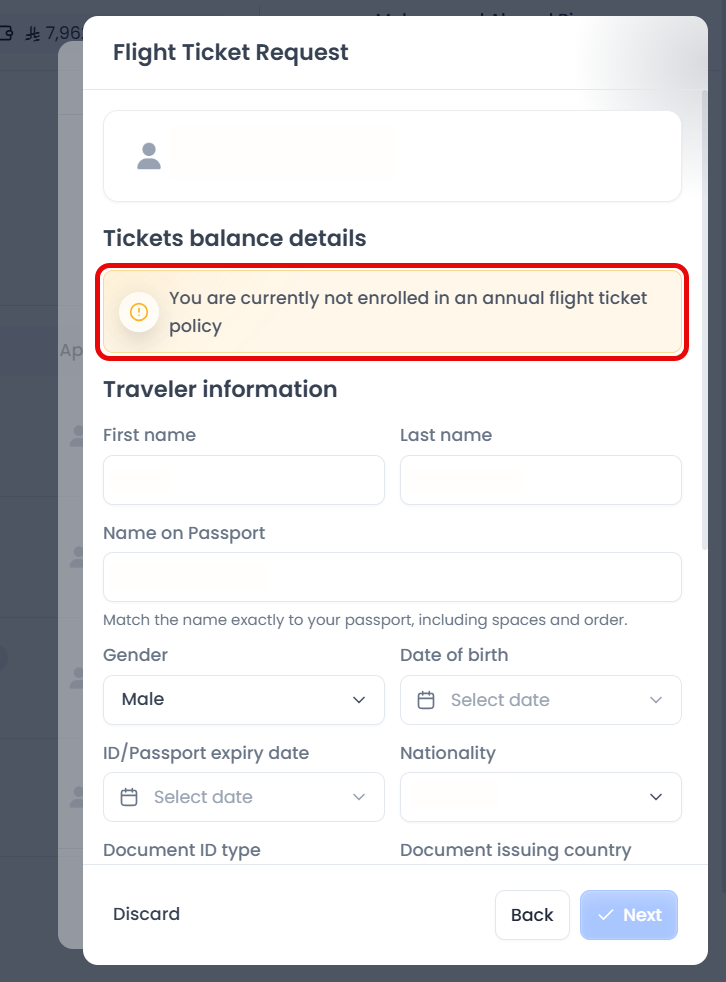
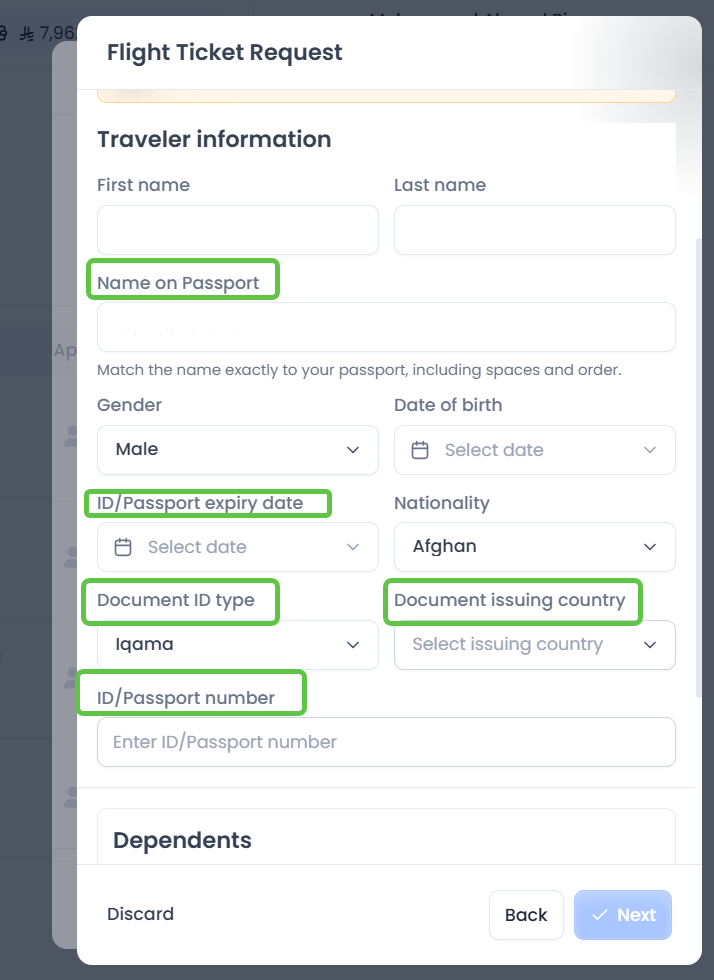
4. After clicking on "Next", the traveler’s information is then entered, including the name exactly as it appears in the passport to ensure accuracy and facilitate the following steps. After that, the remaining personal passport details are entered, such as the passport number and the issuing country.
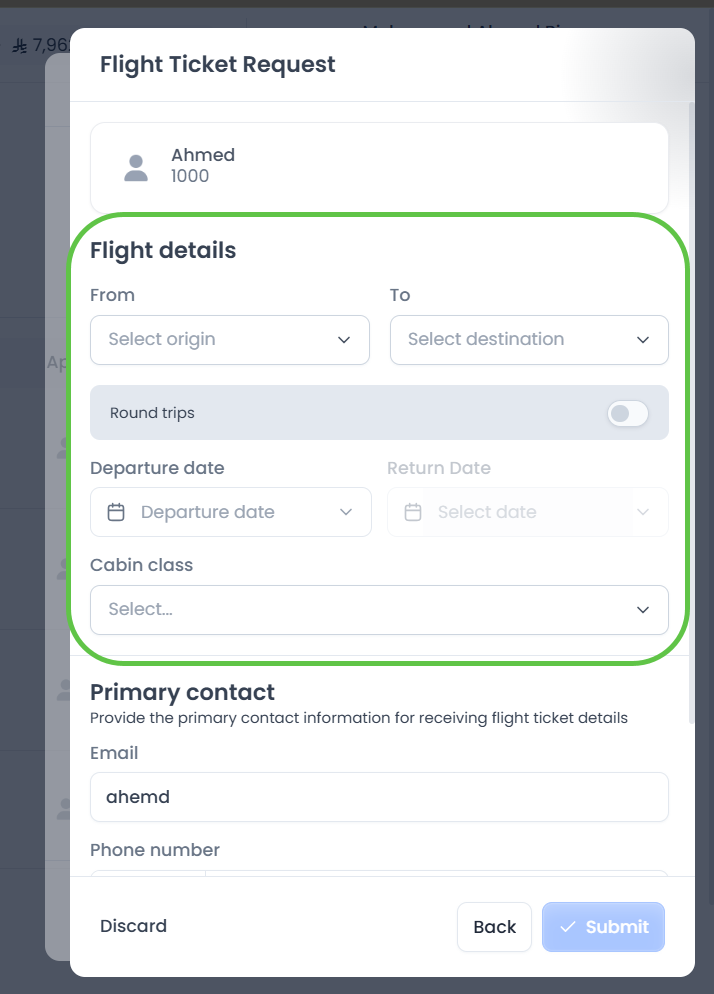
5. By clicking "Next", the "Flight Details" section is entered to specify the destination, departure date, and cabin class.
Note:
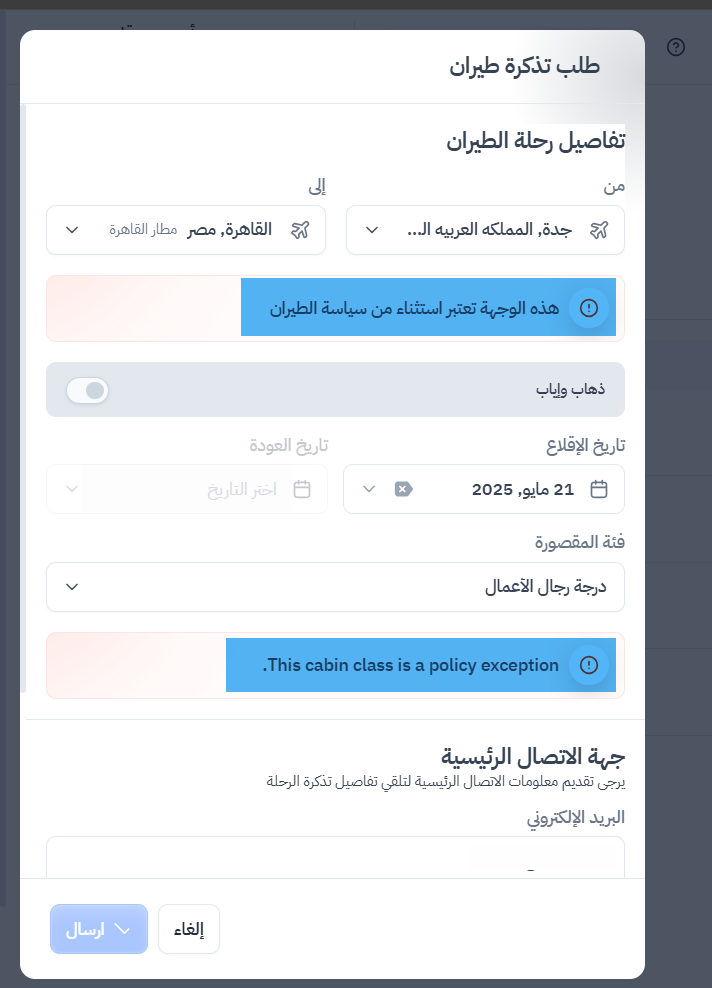
If a destination or cabin class different from those specified in the employee’s flight ticket policy is entered, the system will display a notification indicating that the destination is considered an exception to the policy. However, the user will be able to proceed with the request if the employee’s policy includes the "
Allow Exceptions" feature. This feature is enabled during policy creation.
Learn how to enable it.
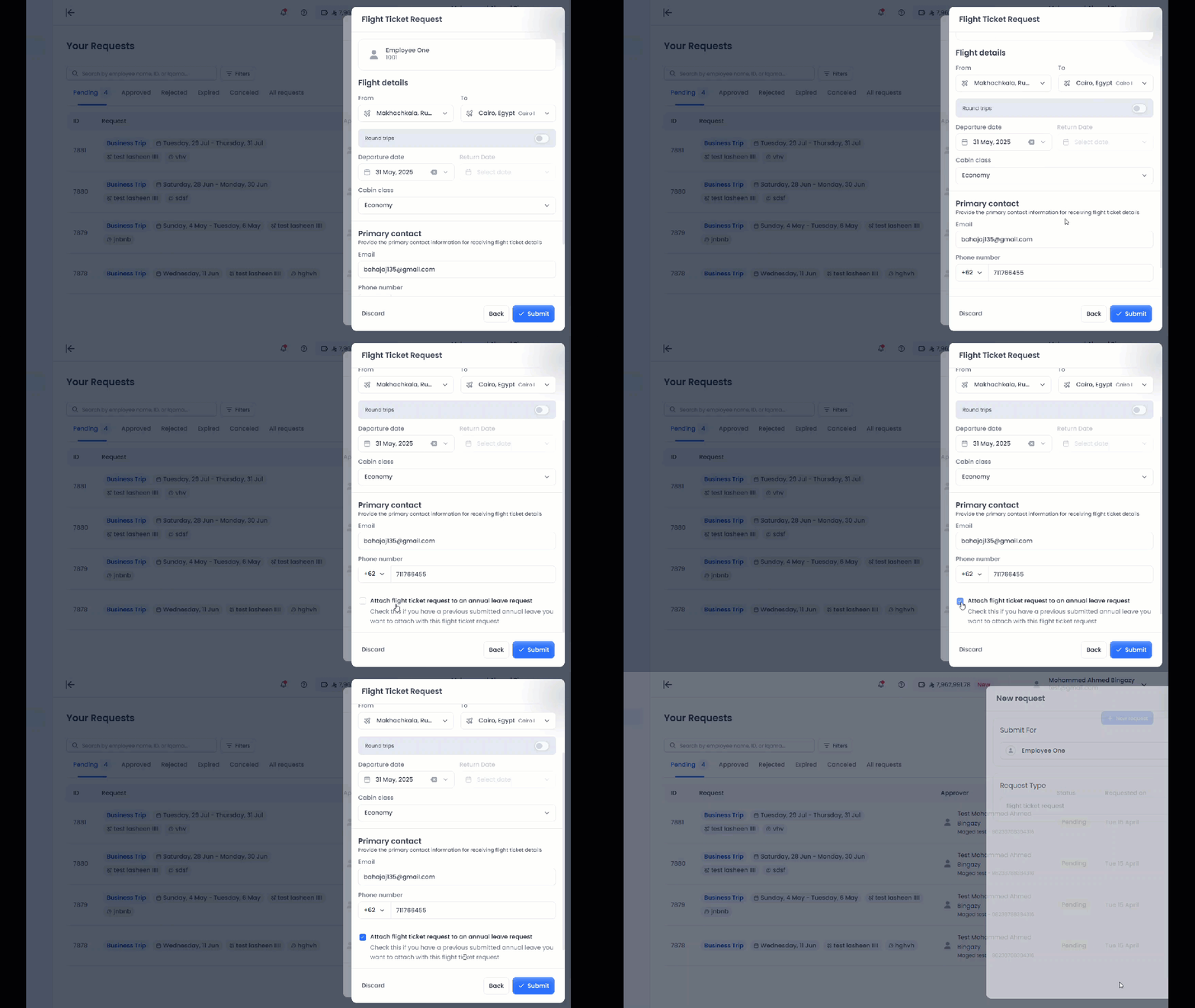
6. The next step is to enter the contact information, such as the email address and phone number, and then submit the request. The user can also attach a previously submitted annual leave request to link it with the flight ticket request.
Please note that this step will be mandatory, not optional, if the employee is included in a policy that only allows ticket requests during annual leave.
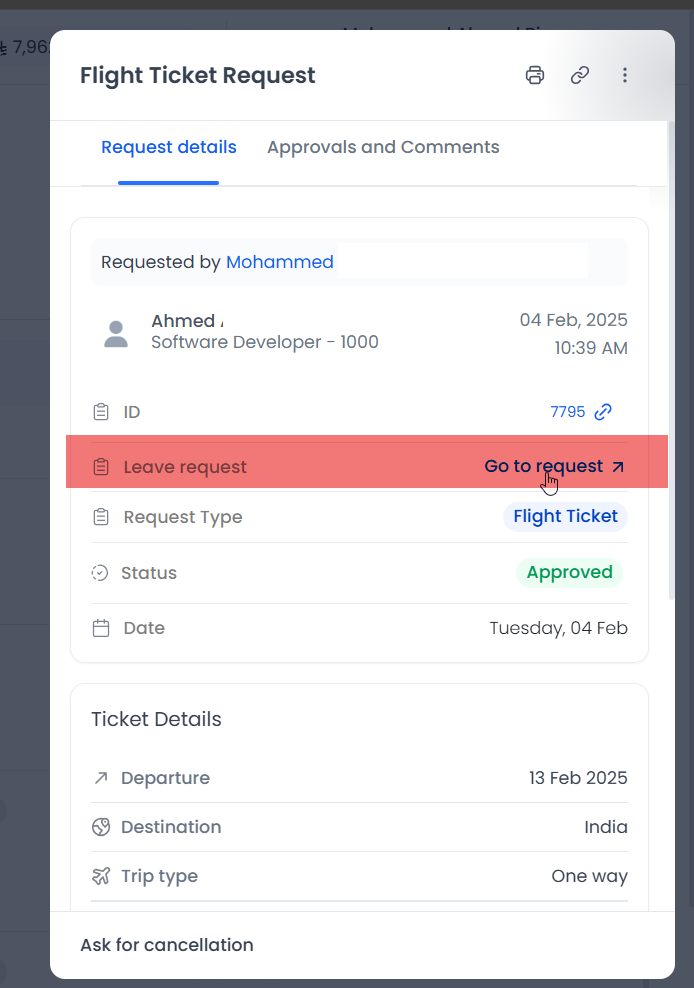
- If an annual leave request is attached to the ticket request, it will be included within the ticket request, along with a link that allows access to the leave request to view its details and status separately.
How can the approver manage the flight ticket request?
After submitting the request, the user assigned in the approval cycle will receive the request in the 'Team Requests' section and can approve it from there. The request can also be found under the 'My Requests' tab if the user is submitting the request for themselves.

- Once the flight ticket request is approved, an automatic message from the system will appear, prompting the user to proceed with booking the approved flight ticket through Almosafer booking platform. To do so, click "Book Ticket Now". If the user does not wish to book at the moment or does not intend to book through the traveler, they should click "Maybe Later".
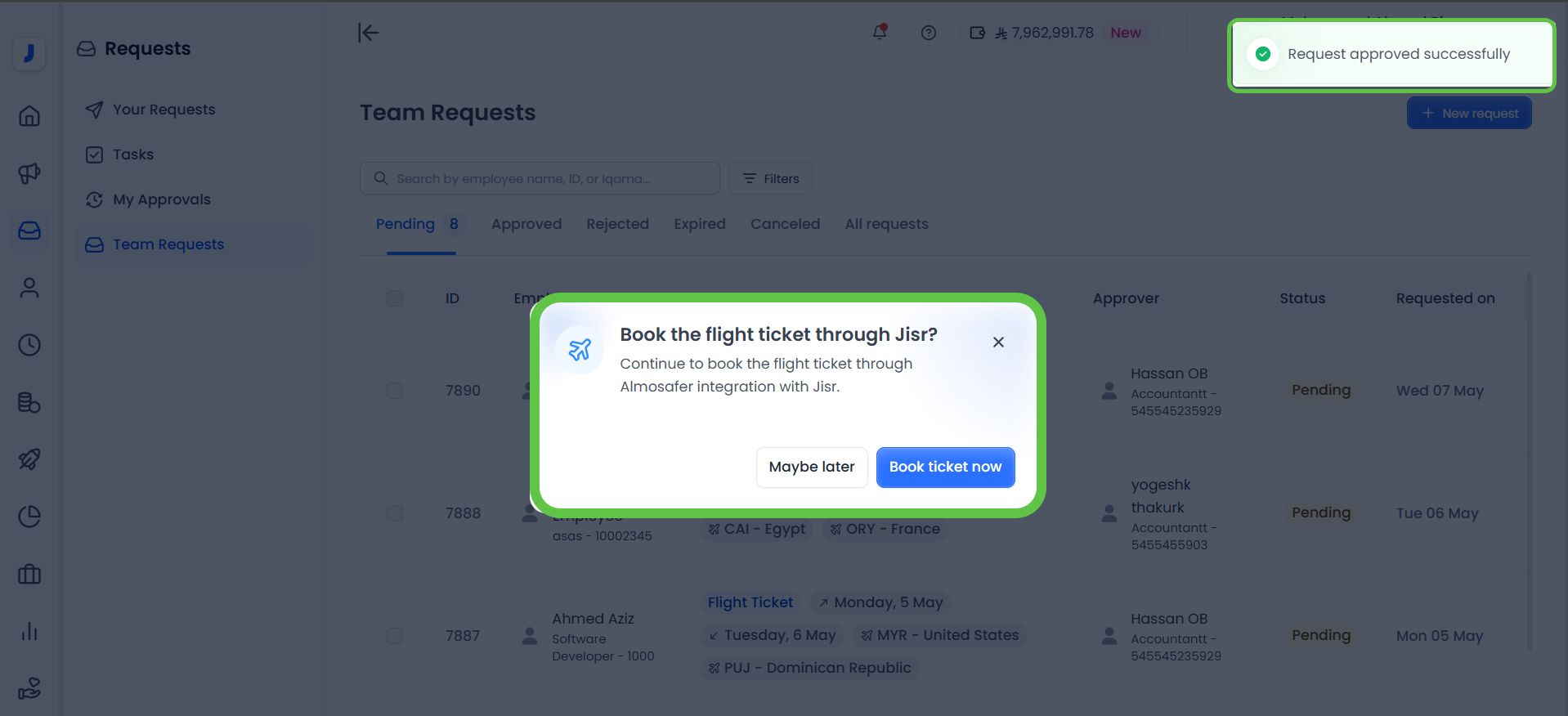
If 'Book Ticket Now' is clicked:
1. The system will direct the user to the "Flight Bookings" page via Almosafer, available on Jisr.
2. The information previously entered in the flight ticket request—such as flight details and traveler information—will be displayed. This initial booking request will have the status "Pending Booking", and the next step to start the booking process is to click "Search for Flights".
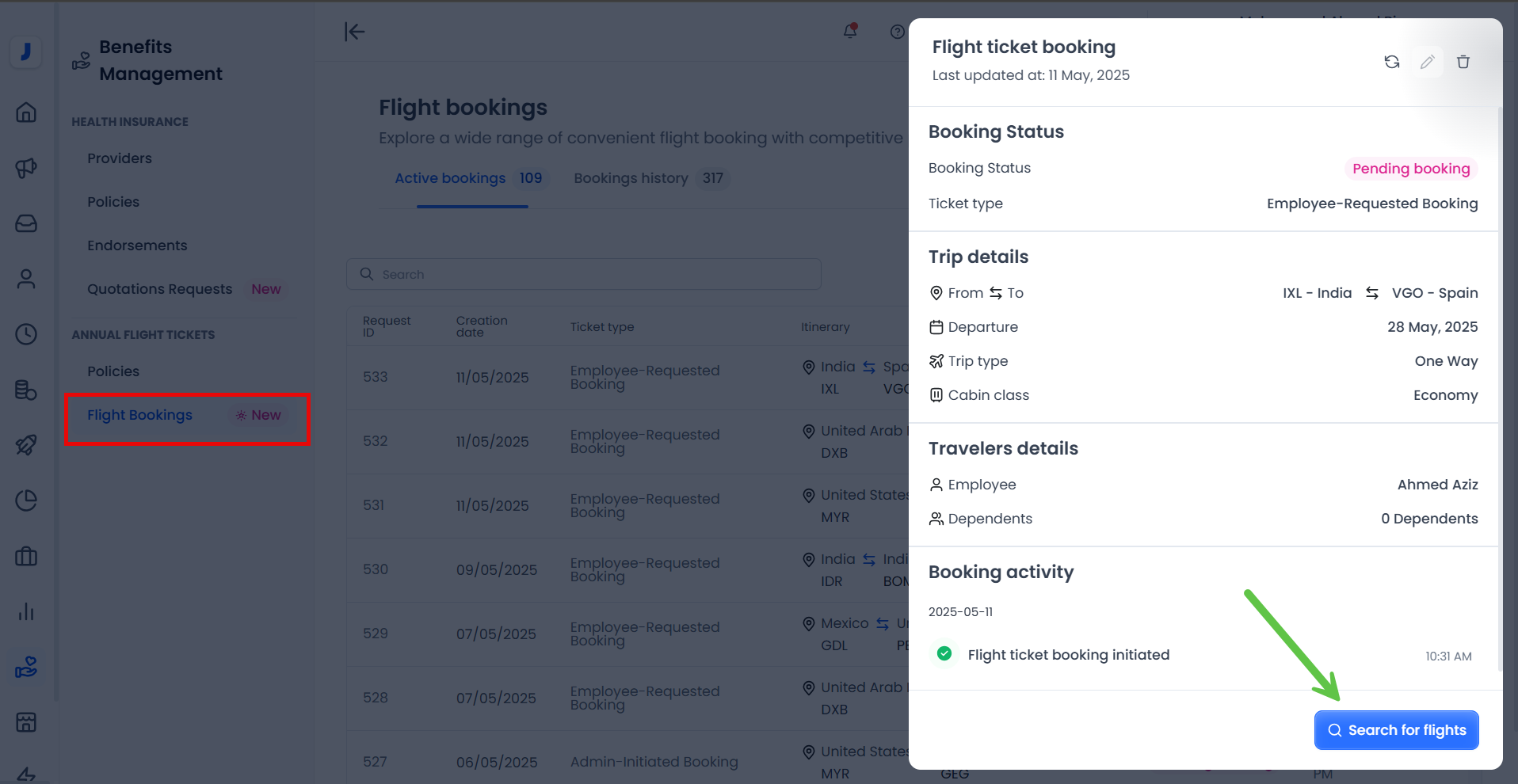
3. When starting the flight search, the system will begin searching for available flights for the selected date and destination.
4. Once the desired flight is selected and its details are displayed, the user can proceed and confirm the booking without needing to re-enter the traveler’s information—it is automatically populated from the request. The request status will then change to "Pending Payment" allowing the user to continue with the payment and finalize the booking.
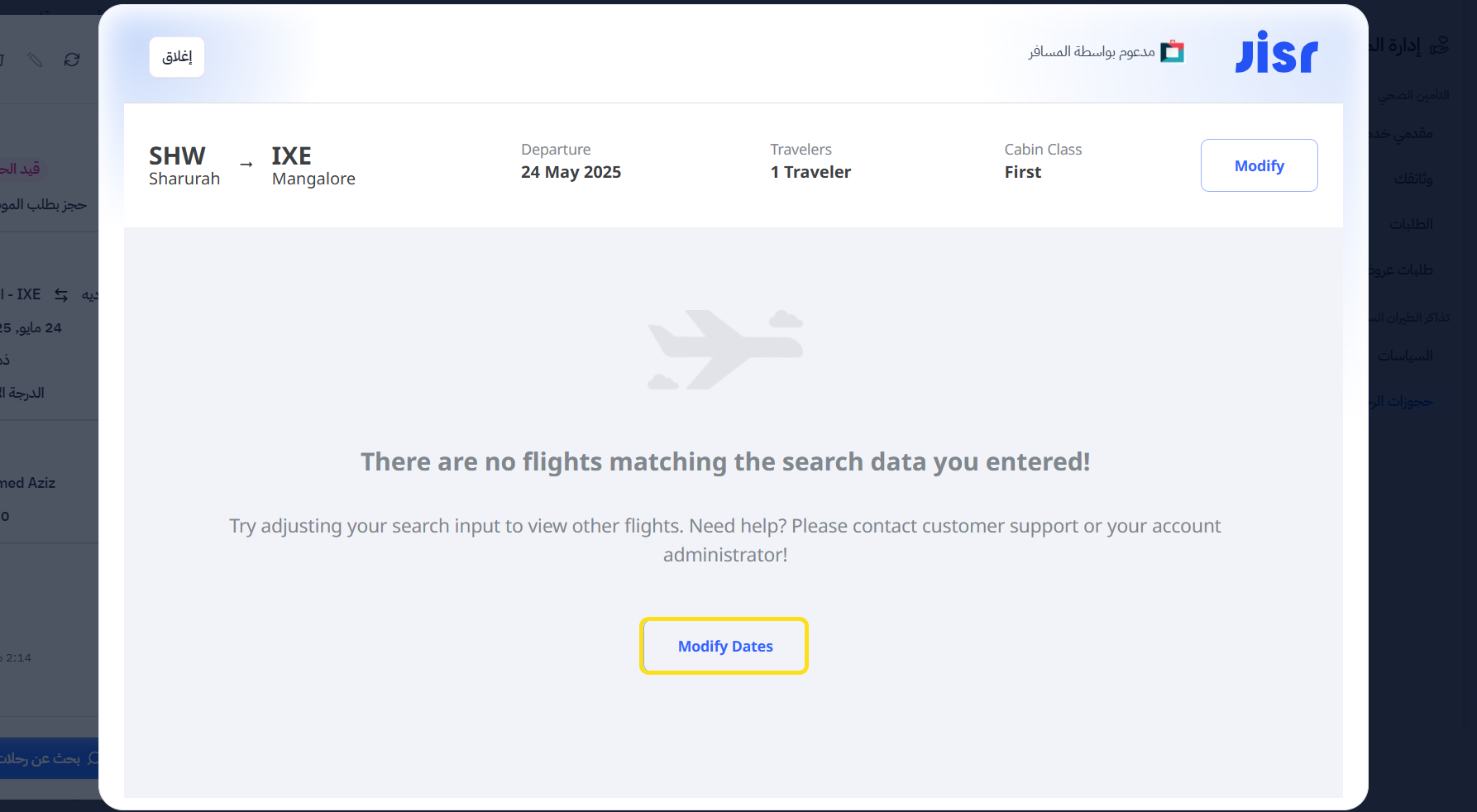
- If no flights are found during the search, a message will appear explaining this and suggesting adjustments to the dates.
-
If the booking is not proceeded with Almosafer after approval:
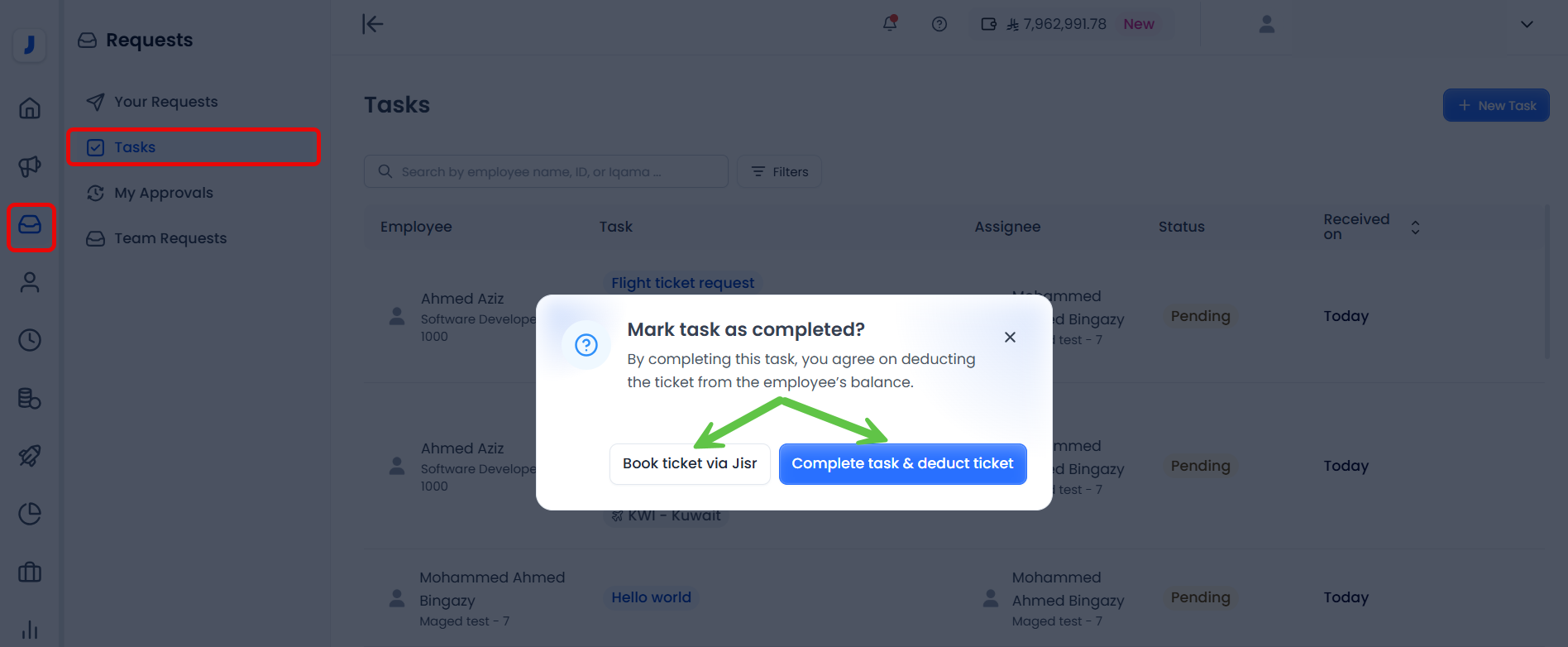
1. a task will be created in the "Tasks" tab for the user responsible for booking the tickets.
2. When the responsible user selects "Mark as completed" for this request, which will deduct the ticket from the employee's ticket balance, the system will present two options: either book the ticket through Almosafer, which will redirect the user to the Flight Bookings tab to complete the booking via Almosafer, or simply complete the task and deduct the ticket balance without booking.

Comments
0 comments
Please sign in to leave a comment.